Limited-Time 30% OFF!Get Offer

Grok Imagine Video Motion Desk on Imagine Image Grok Imagine Video

Text to video and image to video with Video 1.5 preselected — short social clips from a prompt or a first frame.

This /video route is Imagine Image’s motion desk for Grok Imagine Video: seconds-scale clips for product reveals, social hooks, and pitch beats — not a multi-minute offline render farm. Write a motion prompt or drop a still from /image as the first frame. Free credits open a short try — no card required.

  • Seconds-scale clips for social and decks
  • Animate a campaign still as first frame
  • 480p to explore, 720p when detail matters
  • Free credits to open — no card
Grok Imagine Video product hero — left soft type, right silver racing yacht
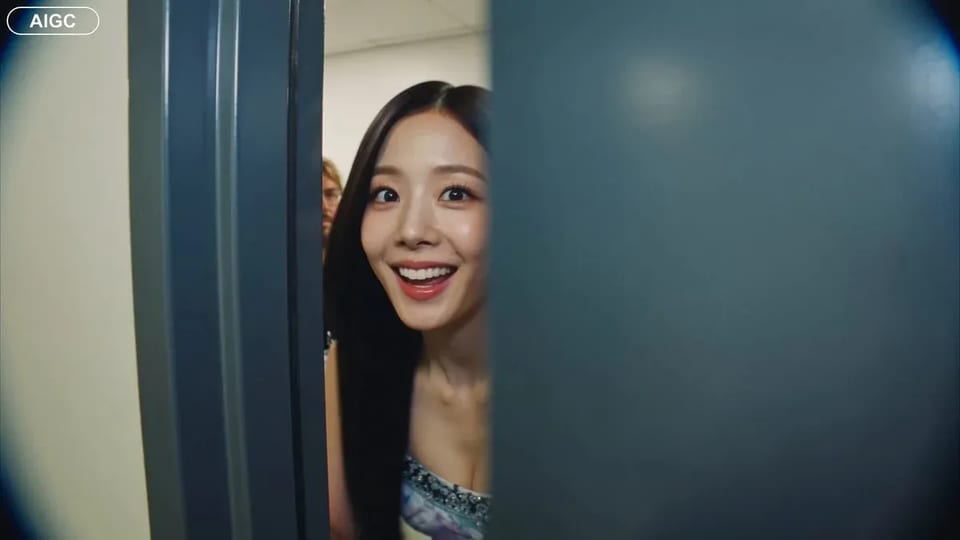
Handheld backstage idol vlog sample

CAMERA: Handheld DV 16mm camcorder aesthetic, first-person/selfie POV. CHASE always holds the camera. Natural hand shake, imperfect framing, delayed autofocus, clumsy zooms, occasional face cropping. The camcorder is never visible. LOOK: Soft vintage DV tape quality with slight blur, subtle tape noise, mild highlight bloom, flickering auto-exposure, muted contrast, natural skin tones. STYLE: Bright, playful K-pop idol vlog. Genuine smiles, eye contact, candid energy, quick handheld shots with backstage excitement. CHARACTER: CHASE, Korean female idol in her 20s. Long straight black hair, dewy skin, elegant Korean features, coral lips, large eyes, slim curvy figure. Wearing a stylish stage outfit with subtle glam makeup and sparkly earrings. SETTING: Backstage hallway of a music show studio with dressing room doors, CHASE's name tag on one door, snack table, overhead PA speaker, and blurred staff passing by. SEQUENCE: 1. Selfie: peeks into the hallway. "Hey guys, we're backstage!" 2. Whip pan down the corridor. "This hallway is so long!" 3. Stops at her dressing room, points at her name tag. "That's me!" 4. Close-up of the name tag as she taps it. Ambient audio only. 5. Quick outfit check with a spin near a mirror. "How do I look?" 6. At the snack table, grabs a snack. "Don't mind if I do." 7. Mid-bite, PA announcement interrupts. She laughs: "Wait—" 8. Selfie ending: hears the countdown, waves, makes a hand heart, then runs toward the stage. "That's my cue—see you after the stage!"

CAMERA: Handheld DV 16mm camcorder aesthetic, first-person/selfie POV. CHASE always holds the camera. Natural hand shake, imperfect framing, delayed autofocus, clumsy zooms, occasional face cropping. The camcorder is never visible. LOOK: Soft vintage DV tape quality with slight blur, subtle tape noise, mild highlight bloom, flickering auto-exposure, muted contrast, natural skin tones. STYLE: Bright, playful K-pop idol vlog. Genuine smiles, eye contact, candid energy, quick handheld shots with backstage excitement. CHARACTER: CHASE, Korean female idol in her 20s. Long straight black hair, dewy skin, elegant Korean features, coral lips, large eyes, slim curvy figure. Wearing a stylish stage outfit with subtle glam makeup and sparkly earrings. SETTING: Backstage hallway of a music show studio with dressing room doors, CHASE's name tag on one door, snack table, overhead PA speaker, and blurred staff passing by. SEQUENCE: 1. Selfie: peeks into the hallway. "Hey guys, we're backstage!" 2. Whip pan down the corridor. "This hallway is so long!" 3. Stops at her dressing room, points at her name tag. "That's me!" 4. Close-up of the name tag as she taps it. Ambient audio only. 5. Quick outfit check with a spin near a mirror. "How do I look?" 6. At the snack table, grabs a snack. "Don't mind if I do." 7. Mid-bite, PA announcement interrupts. She laughs: "Wait—" 8. Selfie ending: hears the countdown, waves, makes a hand heart, then runs toward the stage. "That's my cue—see you after the stage!"

Motion Desk, Not the Campaign Stills Page

Searchers land here for short online video: a product reveal, a social hook, or a storyboard beat that must move. Grok Imagine Video is the default because it is built for text or first-frame clips in the browser. If you still need a hero frame with readable type, make that still on /image first with Grok Imagine Image 2.0 — then come back here to animate it.

| Grok Imagine Video | text to video | image to video | first-frame video | short AI video |

Clip workflow

From Motion Brief to a Downloadable Grok Imagine Video Clip

Three moves on /video — stills stay on /image.

  1. 1

    Start on Grok Imagine Video for speed

    The picker opens on Grok Imagine Video 1.5 for short text-to-video and image-to-video runs. Move to Veo or Seedance when you need a different look or length envelope.

  2. 2

    Write motion — or drop a first frame

    For text to video, name the action and camera. For image to video, upload a still (often from /image) and describe only what should move so the opening frame stays on brand.

  3. 3

    Draft at 480p, polish at 720p

    Use 480p while you explore timing. Step to 720p when the cut is ready for review. Failed runs refund credits automatically.

Clip Jobs Where Grok Imagine Video Fits on Imagine Image

Motion-only scenarios — different people and tasks than the stills hub.

  • Short-form motion concept still reused for Grok Imagine Video on Imagine Image

    Short-form editors

    Cut 3–8 second hooks and transitions without a shoot day. Grok Imagine Video is for the clip you need tonight, not a full episode render.

  • Product reveal motion concept still for Grok Imagine Video

    Product launch teams

    Turn a packaging still into a short reveal: pan, light pulse, or gentle product turn. Image to video keeps the first frame on brand.

  • Paid social motion concept still for Grok Imagine Video

    Paid social producers

    Test motion variants of the same offer. Draft cheap at 480p, then lock a 720p cut for the ad account.

  • Previs-style still for Grok Imagine Video animatics

    Previs / animatic leads

    Move a storyboard still so directors can comment on pacing before a full CG pass. Keep beats short and intentional.

  • Lesson explainer motion concept for Grok Imagine Video

    Course creators

    Animate a diagram still into a short explainer beat. Image to video keeps the teaching frame familiar while motion carries attention.

  • Agency pitch motion concept for Grok Imagine Video

    Agency pitch pods

    Show a client how a keyframe could move without booking a full production. Download the clip the same day and iterate from feedback.

Motion capabilities

What the Grok Imagine Video Desk Emphasizes

  • Short clips by design

    Grok Imagine Video 1.5 targets seconds-scale online video. Chain clips if you need a longer sequence — this page is not a multi-minute offline suite.

  • First-frame image to video

    Upload a still and describe the motion. The opening frame stays close to your photo while the rest of the clip animates — ideal after you polish a still on /image with Grok Imagine Image 2.0.

  • 480p drafts, 720p review cuts

    480p is the cheap explore path. 720p costs more per second when the cut needs detail for client or social review. Free credits cover a short default-tier start.

  • Text to video in plain language

    Name the subject, action, and camera. You do not need a separate xAI account or desktop install — generation runs in the browser workspace.

  • Veo and Seedance one click away

    When a shot needs a different house model, switch without pasting the prompt into another site. Grok Imagine Video stays the default for fast first cuts.

  • Failed clips refund automatically

    Timeouts, server errors, or filters return credits. You only spend on clips you receive.

FAQ for Grok Imagine Video on Imagine Image

What is Grok Imagine Video on Imagine Image?

Grok Imagine Video is the house motion model on Imagine Image. Use this /video hub for short text-to-video and image-to-video clips; use /image with Grok Imagine Image 2.0 when you need a still first.

How long can a Grok Imagine Video clip be?

Grok Imagine Video 1.5 is built for short online clips — roughly seconds-scale depending on the run settings. For longer stories, generate multiple clips and edit them together.

Can I start from a photo I already made on /image?

Yes. Export or reopen the still, open /video, upload it as the first frame, and describe the motion. That image-to-video path is the intended handoff from the stills desk.

480p or 720p — which should I pick first?

Start at 480p while you explore timing and camera moves. Switch to 720p when the cut is ready for social or client review. Higher resolution uses more credits per second.

Is Grok Imagine Video free to try?

New accounts get free credits that can cover a short default-tier run. No credit card is required to start. Buy more credits or subscribe for volume and commercial licensing.

When should I switch from Grok Imagine Video to Veo or Seedance?

Stay on Grok Imagine Video 1.5 for fast first cuts and first-frame animation. Switch when the brief needs a different model’s look or length envelope — the picker keeps your prompt and reference loaded.

Does this page replace a full video editor?

No. It generates short clips you can download and finish in your editor. Think hooks, reveals, and previs beats — not color grade, multi-track audio, or long-form editing.

What happens if a render fails?

Credits refund automatically on server errors, timeouts, or content filters. Shorten the clip, simplify the motion, or try 480p before a longer 720p run.

Make Your Next Short Clip with Grok Imagine Video

Imagine Image motion desk · prompt or first frame · start free with signup credits.